

The Mass Payouts tab provides an interface for initiating multiple outgoing crypto transactions at a time. This can include transactions of different amounts made in different cryptocurrencies. Initiating a mass payout involves processing a special CSV file and creating a transaction based on each data row. Each transaction will then be processed in accordance with the general transaction flow, with the mass payout getting its status based on all the transactions’ statuses.Documentation Index
Fetch the complete documentation index at: https://docs.alphapo.net/llms.txt
Use this file to discover all available pages before exploring further.
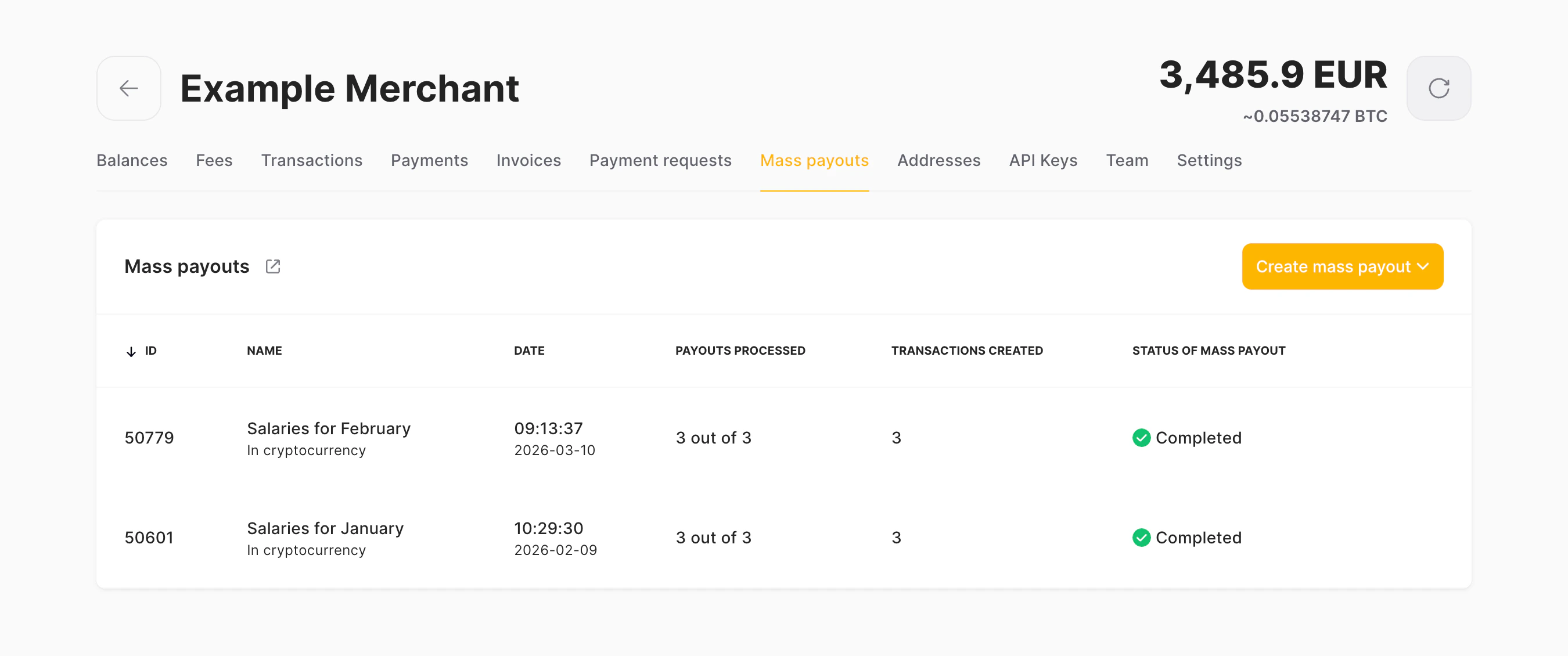
Mass payouts with and without conversion
There are two types of mass payouts available, with and without currency conversion. If you have crypto on your balance and want to simply transfer it to the recipient, choose standard mass payouts. If you have fiat (for example, EUR) and the recipient prefers crypto, you can make a fiat transfer and have it converted to the recipient’s cryptocurrency of choice automatically.Mass payout file format
To make a mass payout, you need to prepare a CSV file describing all the transactions you want to make. The file must contain no more than 500 data rows, and its size must not exceed 1 MB. The file must start with a header row that lists these columns in the specified order. Each data row must contain five values, separated by either commas or semicolons.Standard mass payouts
- Address — the recipient’s address.
- Tag — the recipient’s Tag field. Leave empty for currencies that do not require a Tag field.
- Currency — the ISO code of the currency to send.
- Amount — the amount of funds to send.
- Note — a note to save in the transaction history. Leave empty to skip adding a note for the transaction.
Sample_Without_Conversion.csv
Mass payouts with currency conversion
- From Currency — the currency you want to convert from.
- Amount to Send — the amount of funds to send. Fill in either this field or the Amount to Receive.
- Address — the recipient’s address.
- Tag — the recipient’s Tag field. Leave empty for currencies that do not require a Tag field.
- To Currency — the currency you want to convert to.
- Amount to Receive — the amount the recipient will receive. Fill in either this field or the Amount to Send.
- Note — a note to save in the transaction history. Leave empty to skip adding a note for the transaction.
Sample_With_Conversion.csv
Only fill in either the Amount to Receive or the Amount to Send. AlphaPo will calculate the other value automatically. If you include both fields, you will get an error message.
Create a mass payout
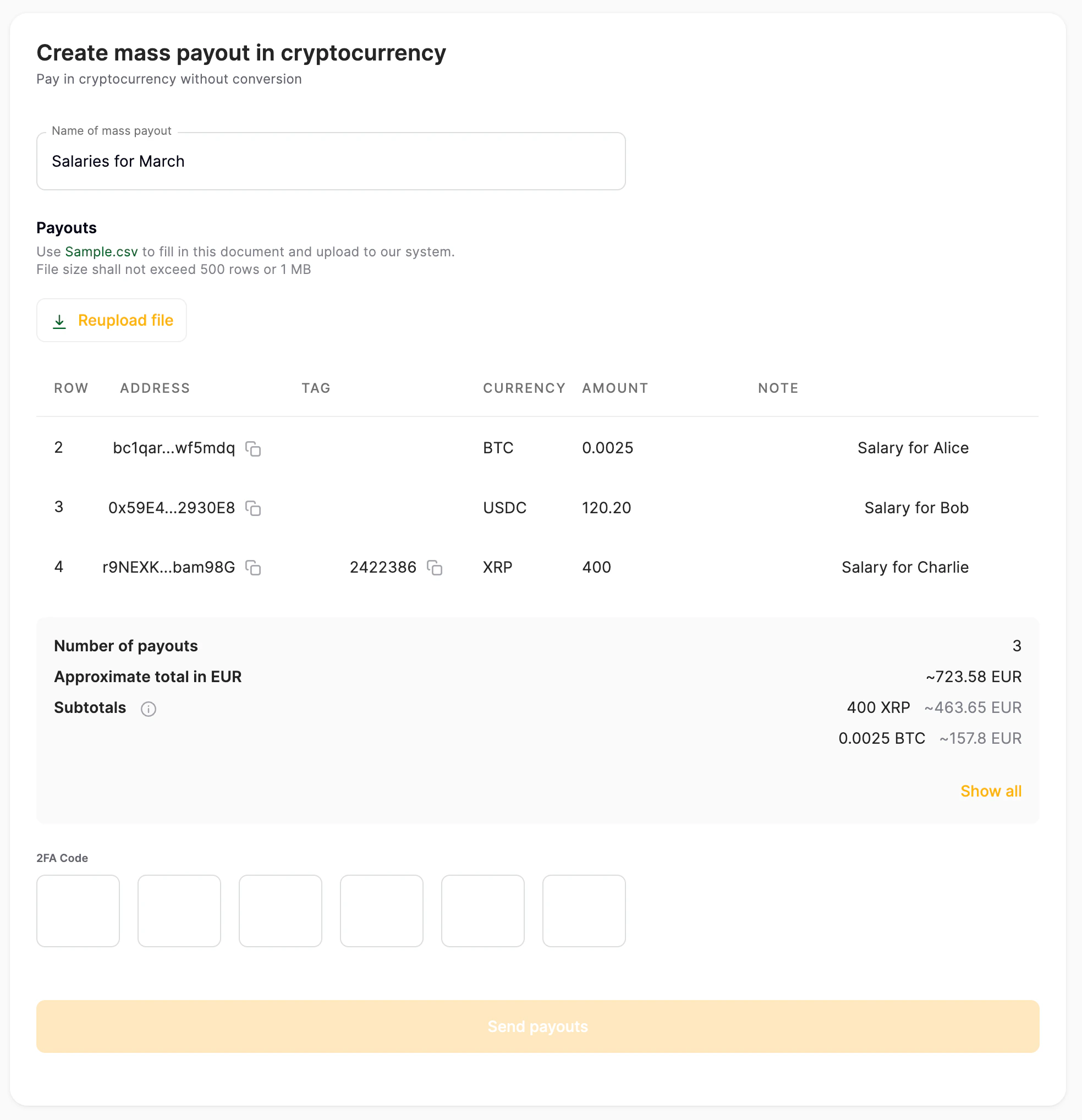
Once you prepared a CSV file for a mass payout, you can upload it and initiate a mass payout.Choose between a standard payout (In cryptocurrency) and a payout with currency conversion (With conversion).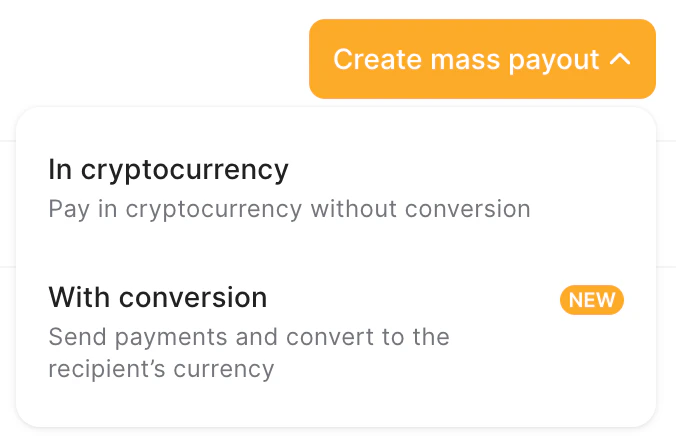
Check the preview table to make sure that the CSV file was processed correctly. If AlphaPo detects a critical error in a specific row, it will display an exclamation mark next to that row. Hover over it to see the error message. The first column will always display the number of the line on which the invalid data was found in the CSV file. Fix all the critical errors in your file and click Reupload file to upload and check it again.
Check the total estimation at the bottom of the table. It includes:
- the total withdrawal amount in the equivalent currency,
- a subtotal withdrawal amount for each cryptocurrency, both in the cryptocurrency itself and in the equivalent currency. Note that the amount in the equivalent currency is informational. The actual costs may change due to both the AlphaPo’s fees and the network’s mining fees. Both of them are applied to each transaction only after AlphaPo considers it confirmed.
View a mass payout status
The table on the Mass Payouts tab displays all mass payouts created by the merchant. It contains the following columns:- ID — a unique internal identifier of the mass payout.
- Name — the name that was entered when initiating the mass payout.
- Type — with conversion or in cryptocurrency.
- Date — the date and time when the mass payout was initiated.
- Payouts processed — how many rows from the original CSV files have been processed. For example, “10 out of 20” would indicate that the CSV file contains 20 data rows, but AlphaPo has only attempted to create the transactions for 10 of them so far.
- Transactions created — how many transactions were created as part of the mass payout. Normally, this value increases and eventually becomes the same as the number of Payouts processed. However, AlphaPo may fail to create some transaction due to insufficient funds, an invalid recipient address or other unexpected errors. See Retrying unsuccessful transactions below.
- Processing — AlphaPo is still creating the transactions based on the CSV file or waiting for the transactions to be completed.
- Transaction on moderation — one or more transactions require another owner’s approval, due to the withdrawal limits settings.
- Completed with errors — all created transactions are completed, but some transactions either could not be created or failed after creation.
- Completed — all transactions were created and completed successfully.
- Transactions created — the number of successfully created transactions. Click on the number to see this mass payout’s transactions on the Transactions tab. Below the counter, a separate counter will be shown for each status that transactions from this mass payout got. Click on a number to see the mass payout’s transactions with the given status on the Transactions tab.
- Transactions not created — the number of rows from the original CSV file for which AlphaPo failed to create transactions.
Retrying unsuccessful transactions
For mass payout with at least one failed item in it (either a failure in creating a transaction or an unsuccessful transaction), the panel contains the Export unsuccessful transactions button. Click the button to download a modified version of the original CSV file, with all successful transactions removed. The button for downloading the file appears as soon as at least one failure occurs during the mass payout. The file may change after that if more transactions will be unsuccessful.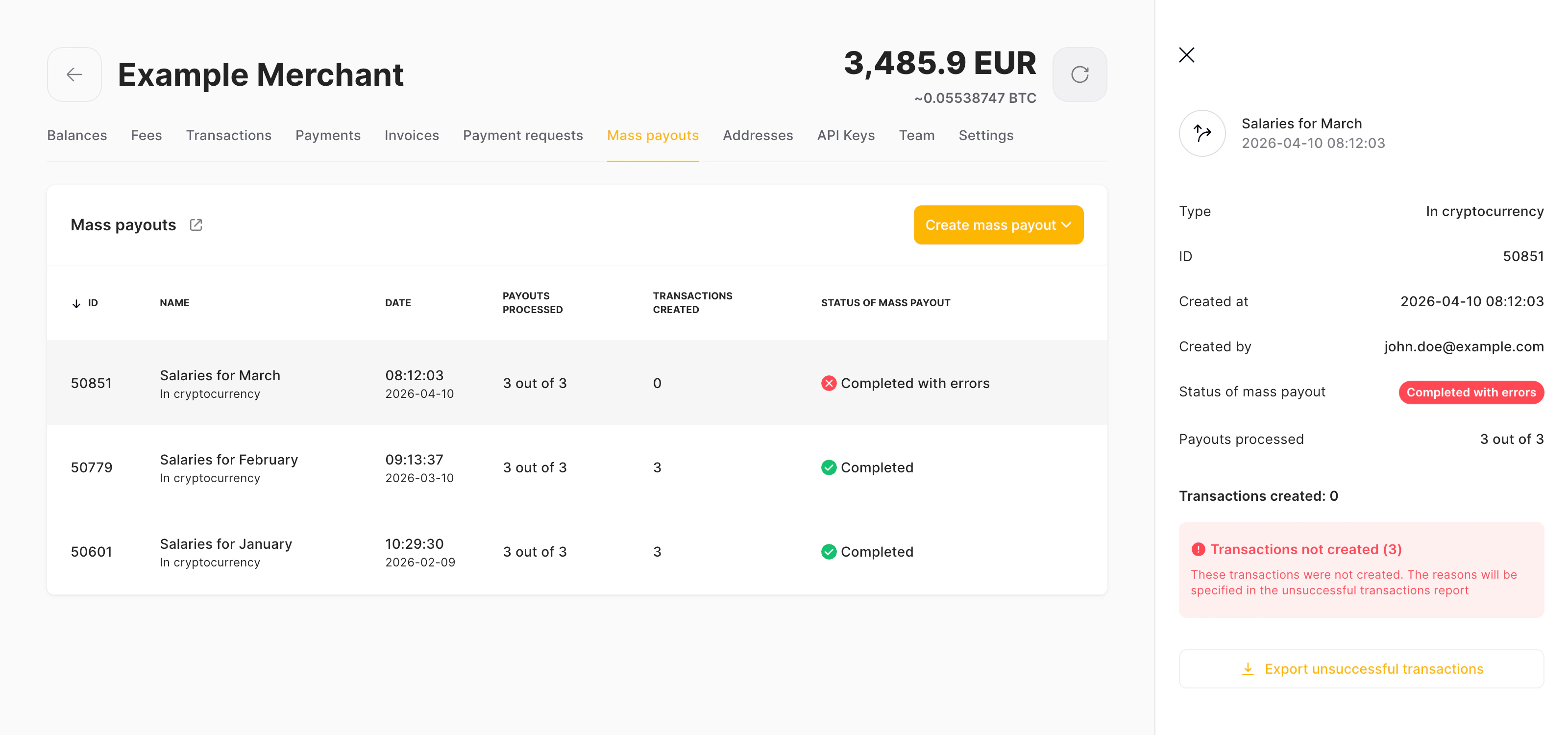
- Status — either the status of an unsuccessful transaction (Failed, Declined, Canceled) or Not created if AlphaPo failed to create a transaction based on this data row.
- Error — an error message explaining why the transaction was unsuccessful.