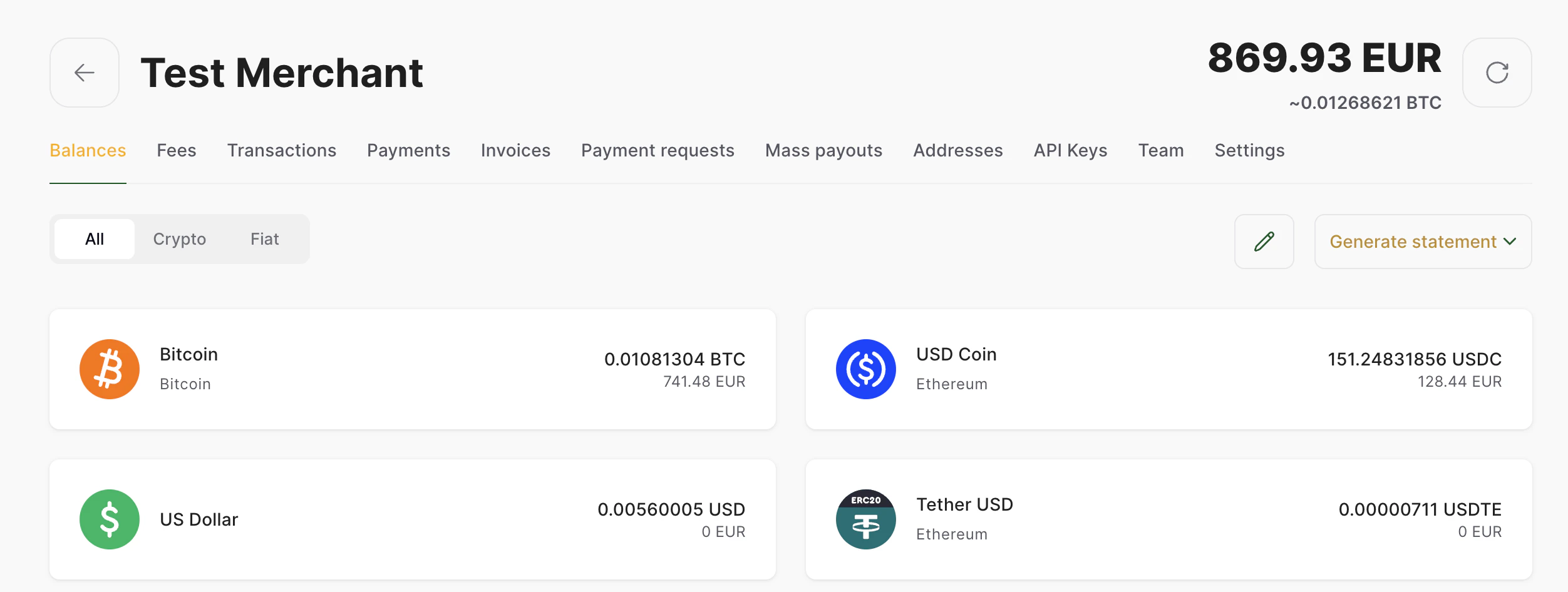
In the Balances tab, you can find your fiat and crypto account balances. You can also see your deposit address for each cryptocurrency.Documentation Index
Fetch the complete documentation index at: https://docs.alphapo.net/llms.txt
Use this file to discover all available pages before exploring further.
Receive crypto
To see your deposit address for any cryptocurrency:- In the Balances tab, click the cryptocurrency you want to receive.
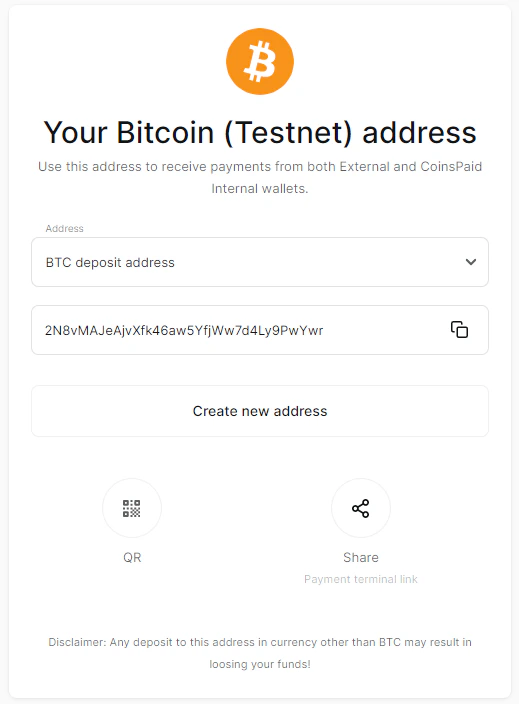
- Click Receive.
- Select the address you want to copy from the dropdown list. Click Copy next to the address. You can also use the QR code or share the payment terminal link.
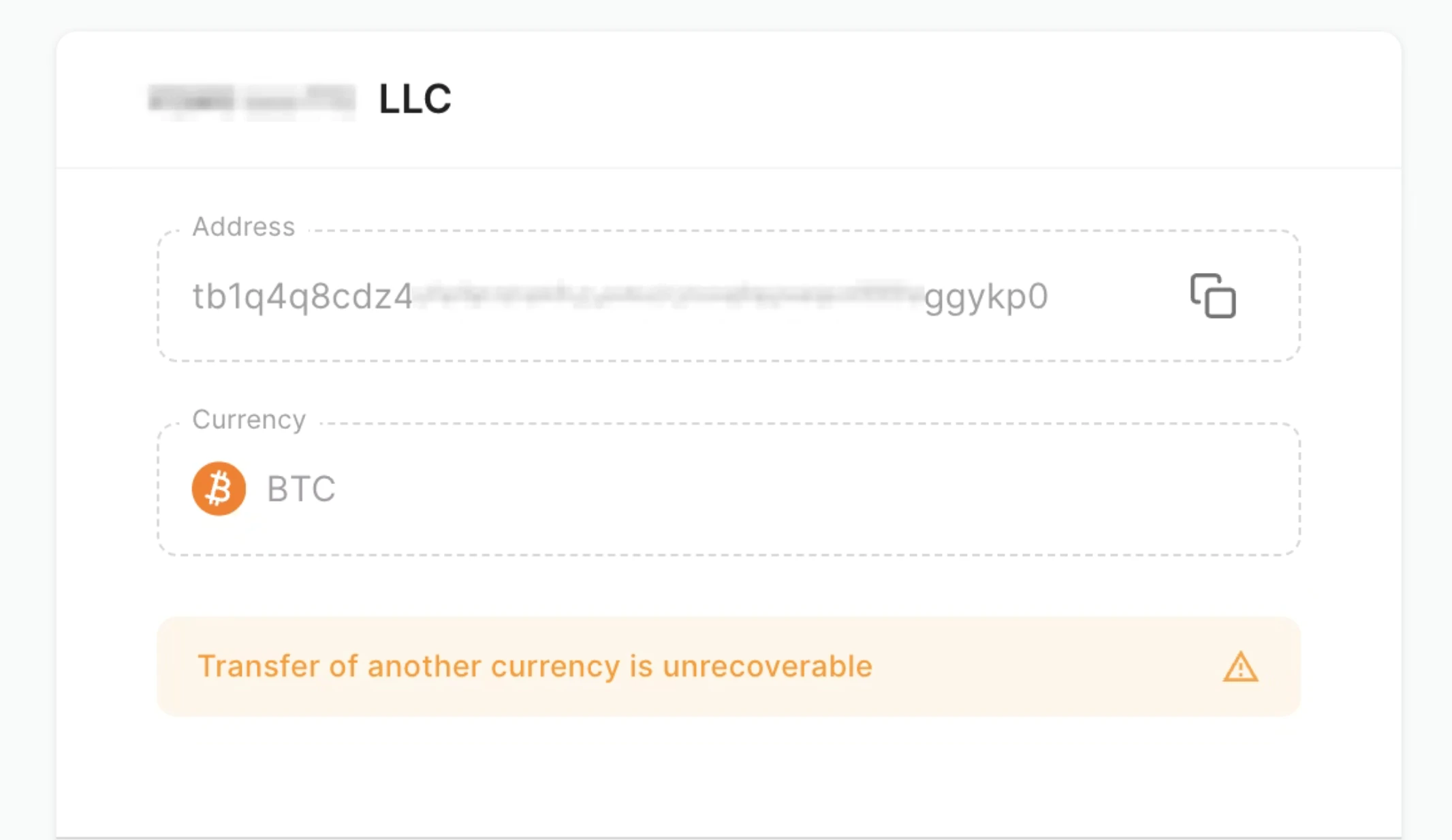
Before a deposit is made to the address, make sure the currency is correct and the deposit amount is higher than our minimal limits. For more details on minimal limits, see Confirmations and limits.
Exchange crypto
You can exchange your cryptocurrency to fiat, vice versa or exchange cryptocurrencies between each other (you can see the available trading pairs by pressing the “Exchange” button).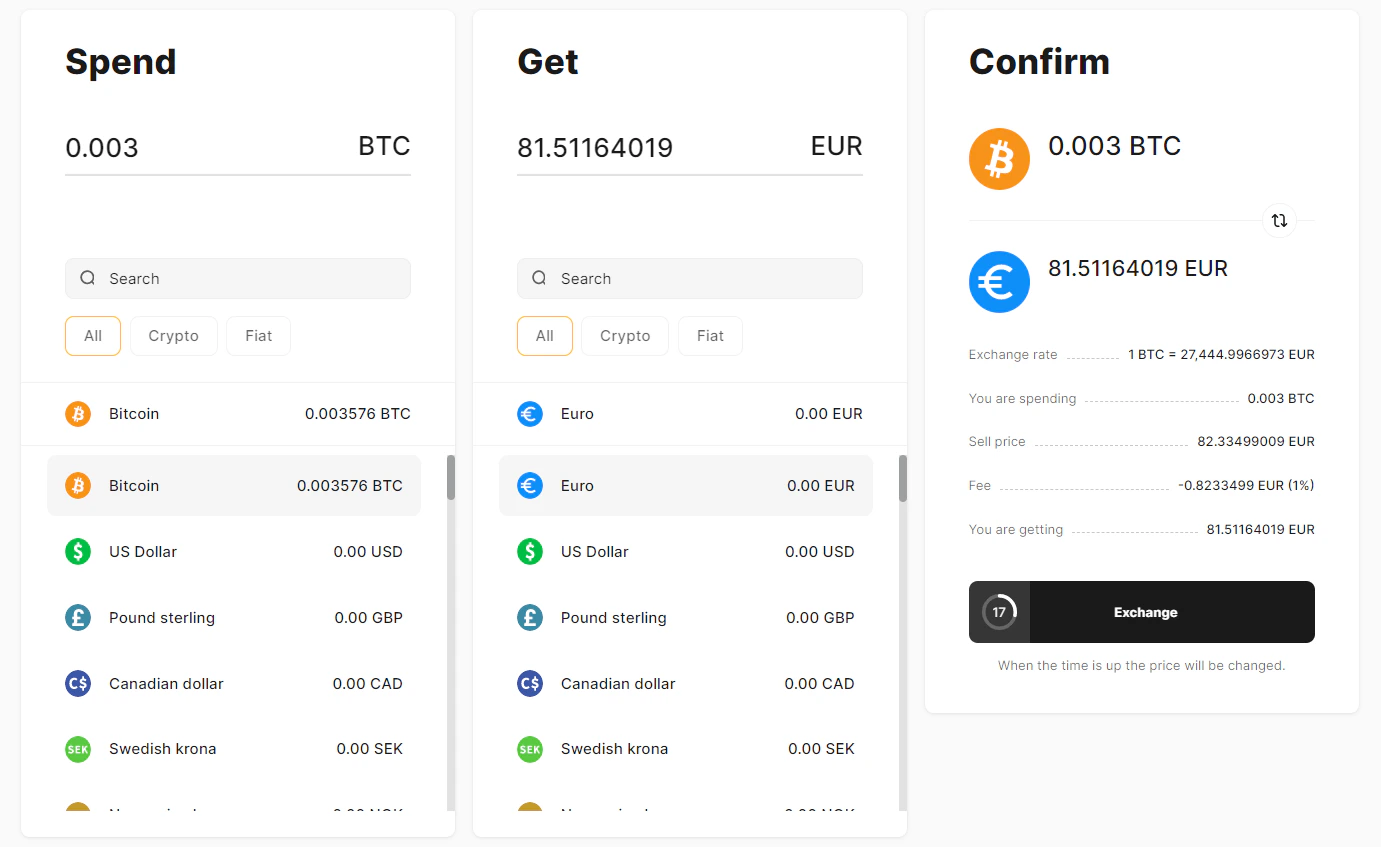
Withdraw crypto
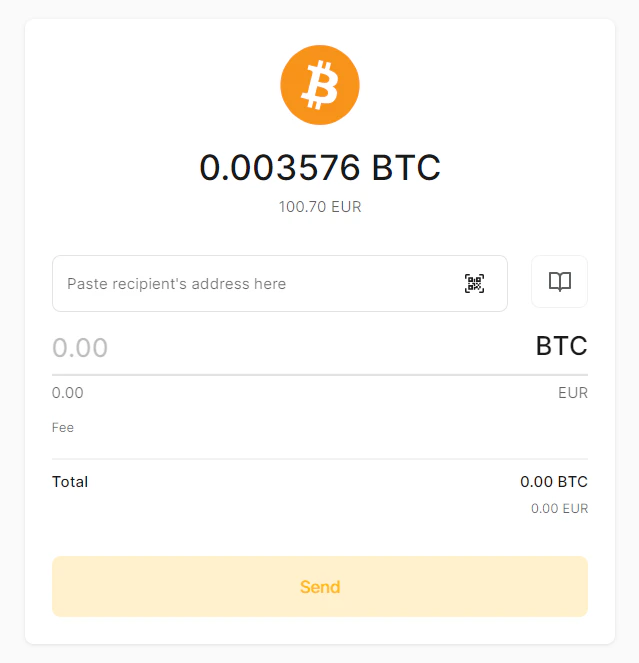
By pressing the “Send” button you can access the menu that allows you to withdraw cryptocurrency. You need to specify the address and set the amount. Same rule applies to the withdrawal as well, you need to make sure that receiver’s address is correct, the currency is matching and the amount is above the processing limits.