Documentation Index
Fetch the complete documentation index at: https://docs.alphapo.net/llms.txt
Use this file to discover all available pages before exploring further.
The Addresses tab in your merchant dashboard lists your addresses and system addresses, as well as withdrawal addresses added by your customers.
My addresses
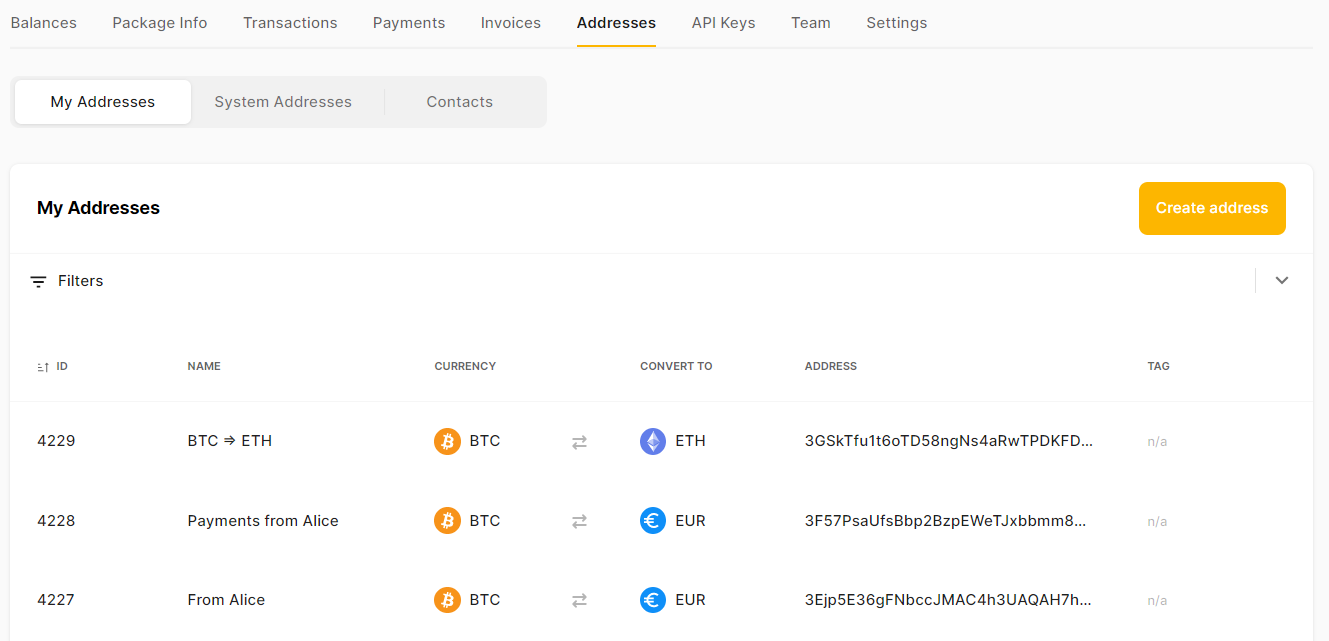
This section lists your addresses.
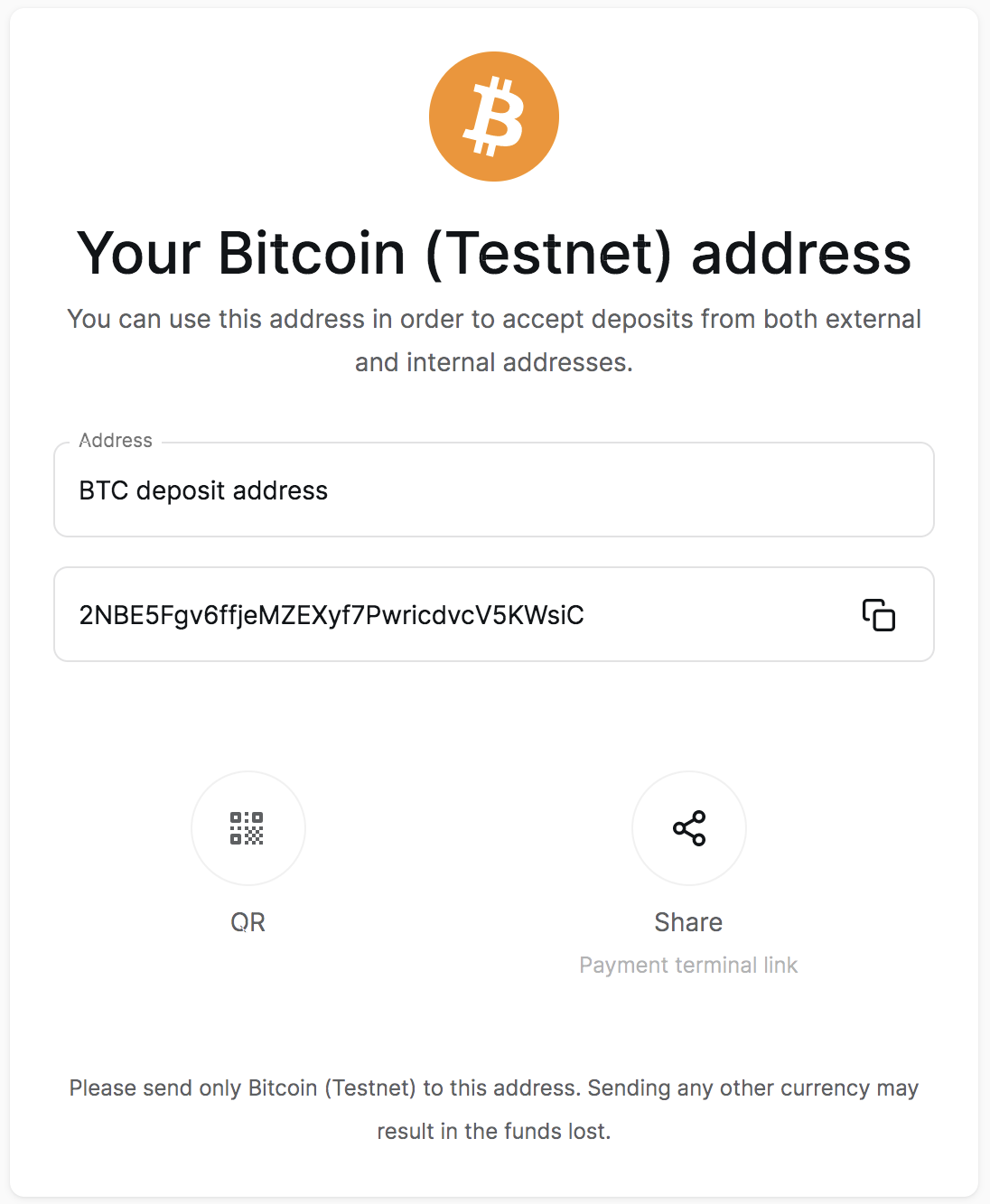
The first section, My addresses, lists your deposit addresses. You can send crypto to them to top up your balance. To copy an address or see the QR code for it, click it.
 If you click an address, you will see a side tab with deposit details.
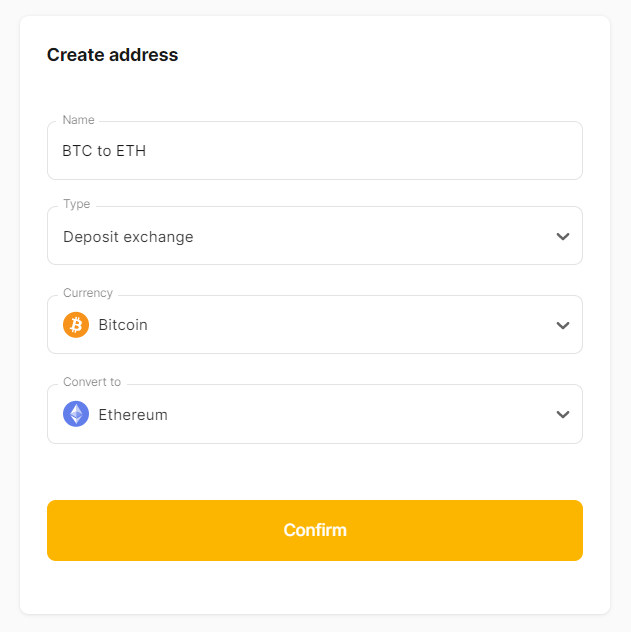
Create a new address
To create a new address:
In your merchant dashboard, click Addresses on the navigation panel.
Choose the address type and currency. Click Confirm.
System addresses
The System addresses section contains addresses generated by the API via the api/v2/addresses/take request. This section is available to all merchant users.
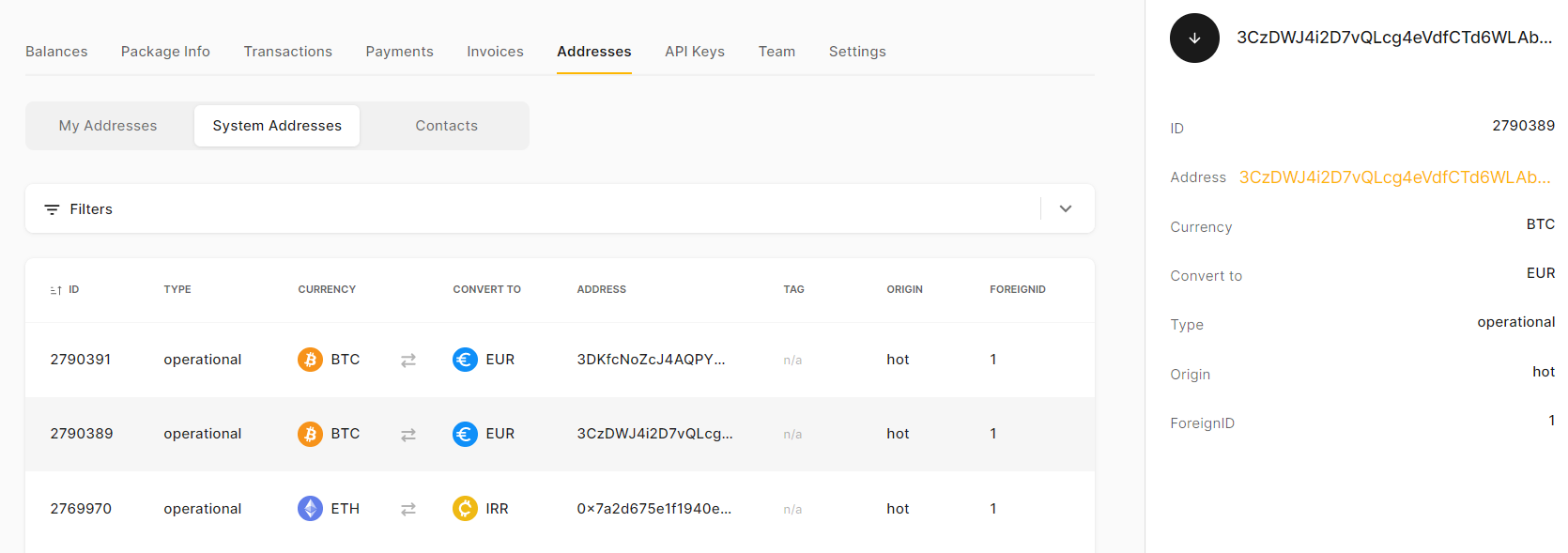 On this page, you can see a list of system addresses presented. You can search addresses by any available parameter using the filter by clicking on the respective button.
All the detailed information about the address can be viewed and copied by clicking on the address and then on the “Copy address” button in the window appeared.
The Contacts contains the withdrawal addresses added by the user. The possibility to create a contact is available to the merchant user with the owner rights only.
On this page, you can see a list of system addresses presented. You can search addresses by any available parameter using the filter by clicking on the respective button.
All the detailed information about the address can be viewed and copied by clicking on the address and then on the “Copy address” button in the window appeared.
The Contacts contains the withdrawal addresses added by the user. The possibility to create a contact is available to the merchant user with the owner rights only.
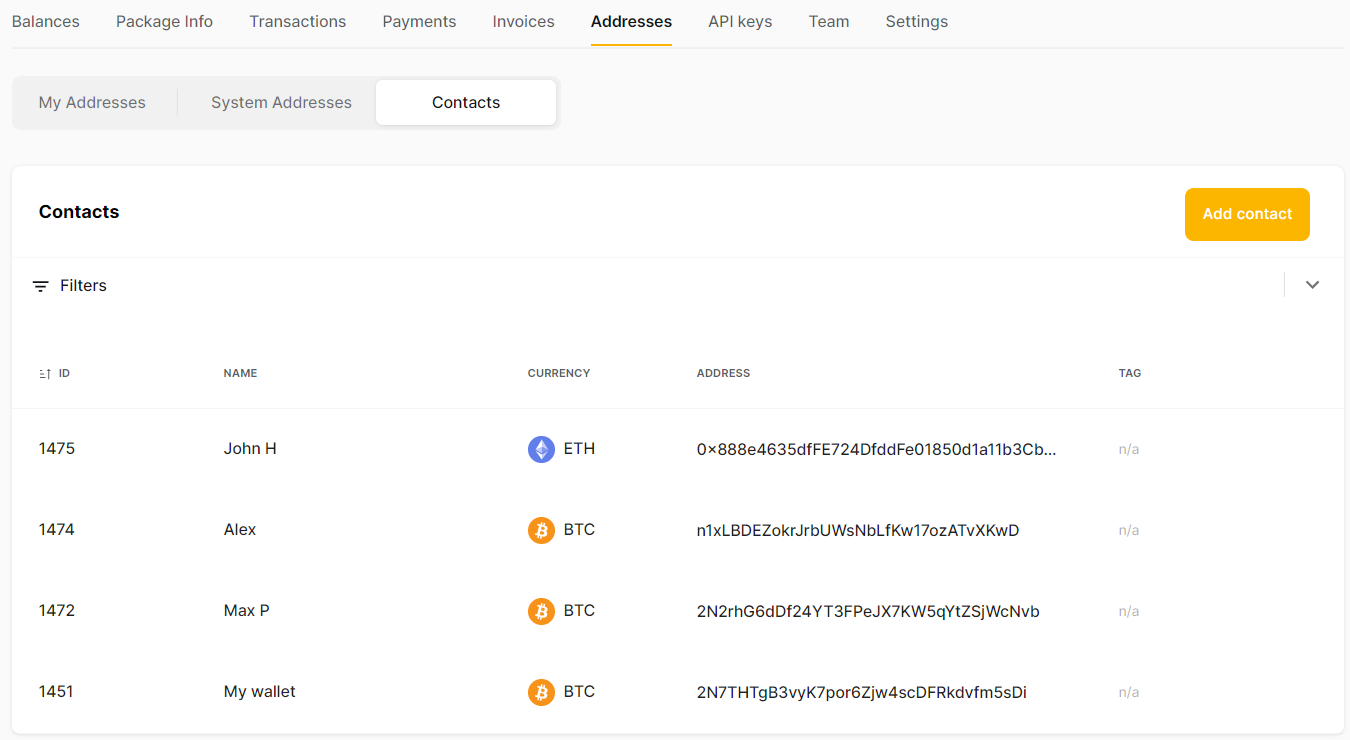 In order to add an address to which you withdraw funds on a constant basis, kindly click “Add Contact” button and fill in the required information in the following fields:
The system checks if the format of the address corresponds to the network to which a withdrawal will be sent.
This section allows to save addresses in order to have a quick access to them due to withdrawing funds. You will be able to get access to them later due to selecting the currency of the withdrawal transaction in the “Balances” tab. In order to do that you need to click on the currency of the withdrawal and then click on the address book icon.
In order to add an address to which you withdraw funds on a constant basis, kindly click “Add Contact” button and fill in the required information in the following fields:
The system checks if the format of the address corresponds to the network to which a withdrawal will be sent.
This section allows to save addresses in order to have a quick access to them due to withdrawing funds. You will be able to get access to them later due to selecting the currency of the withdrawal transaction in the “Balances” tab. In order to do that you need to click on the currency of the withdrawal and then click on the address book icon.
Lightning invoices
Use this tab to view generated Lightning invoices.
Click any invoice in the list to open its details and see additional information, such as the invoice type, when it was generated, and the Lightning invoice itself (the payment address on the Lightning Network):


