> ## Documentation Index
> Fetch the complete documentation index at: https://docs.alphapo.net/llms.txt
> Use this file to discover all available pages before exploring further.
# Payment requests
With payment requests, you can let your customers make one-time payments in the cryptocurrency of their choice.
* **Your customer** sees a convenient webpage that guides them through the payment process.
* **You** receive funds in the currency you requested, regardless of the customer's payment currency.
* **AlphaPo** takes care of conversion and edge cases, such as underpayments and overpayments.
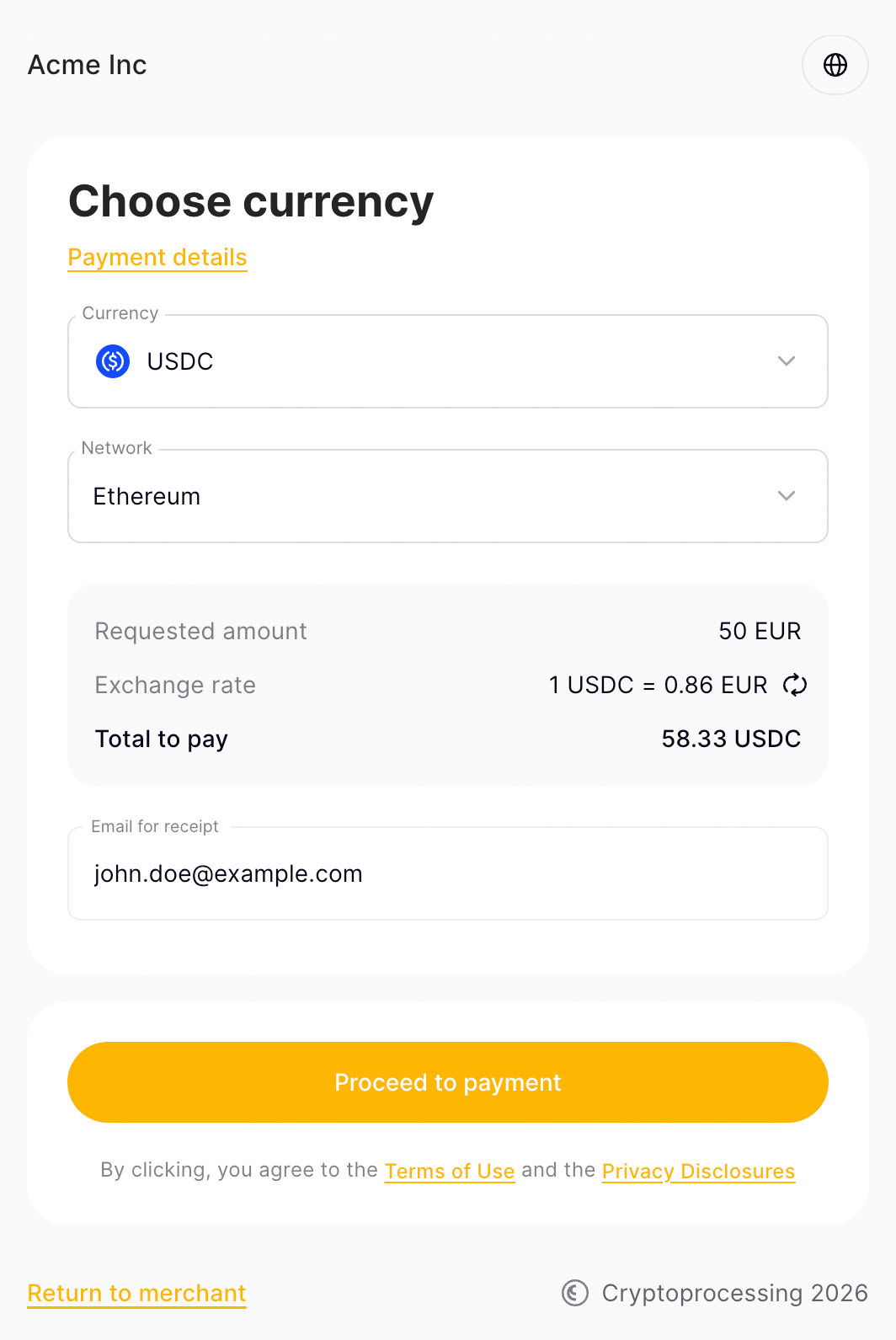
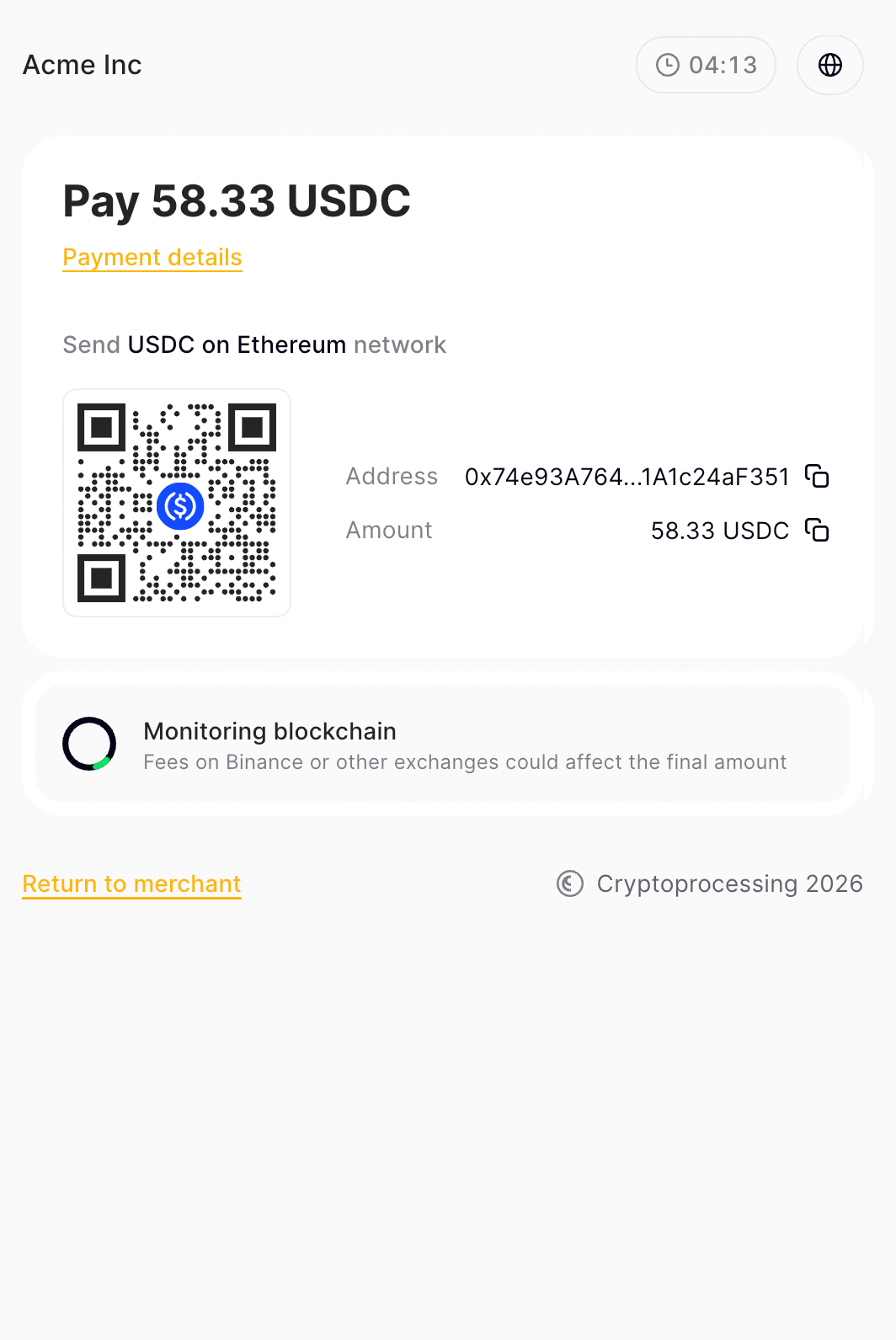
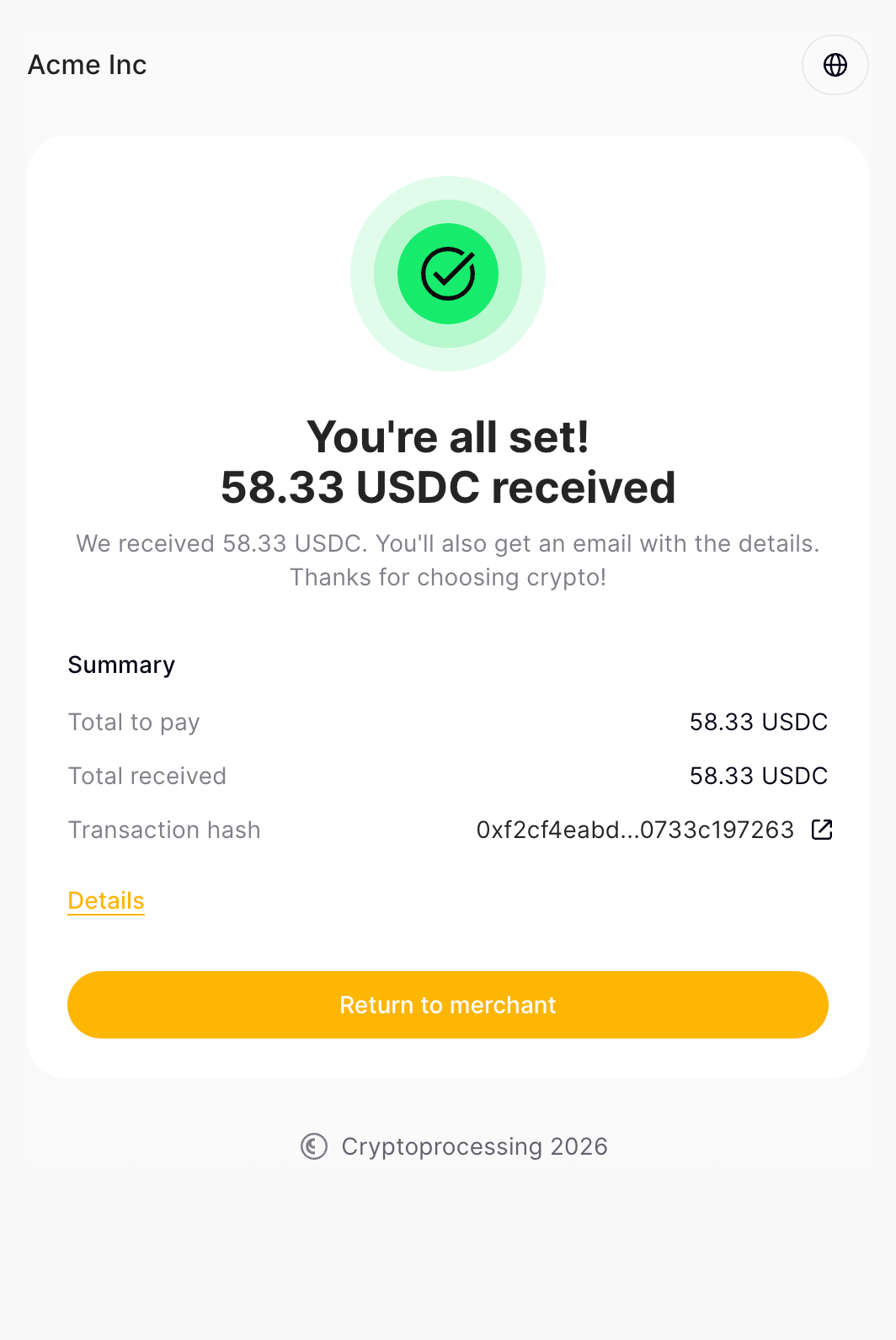 When creating a payment request, you control its behavior by choosing the [currency](#currency-selection) and the [lifespan](#lifespan-and-rate-lock).
The funds received via a payment request may be sent back via a [refund](/payment-requests/refunds), initiated either automatically or manually by you.
## Currency selection
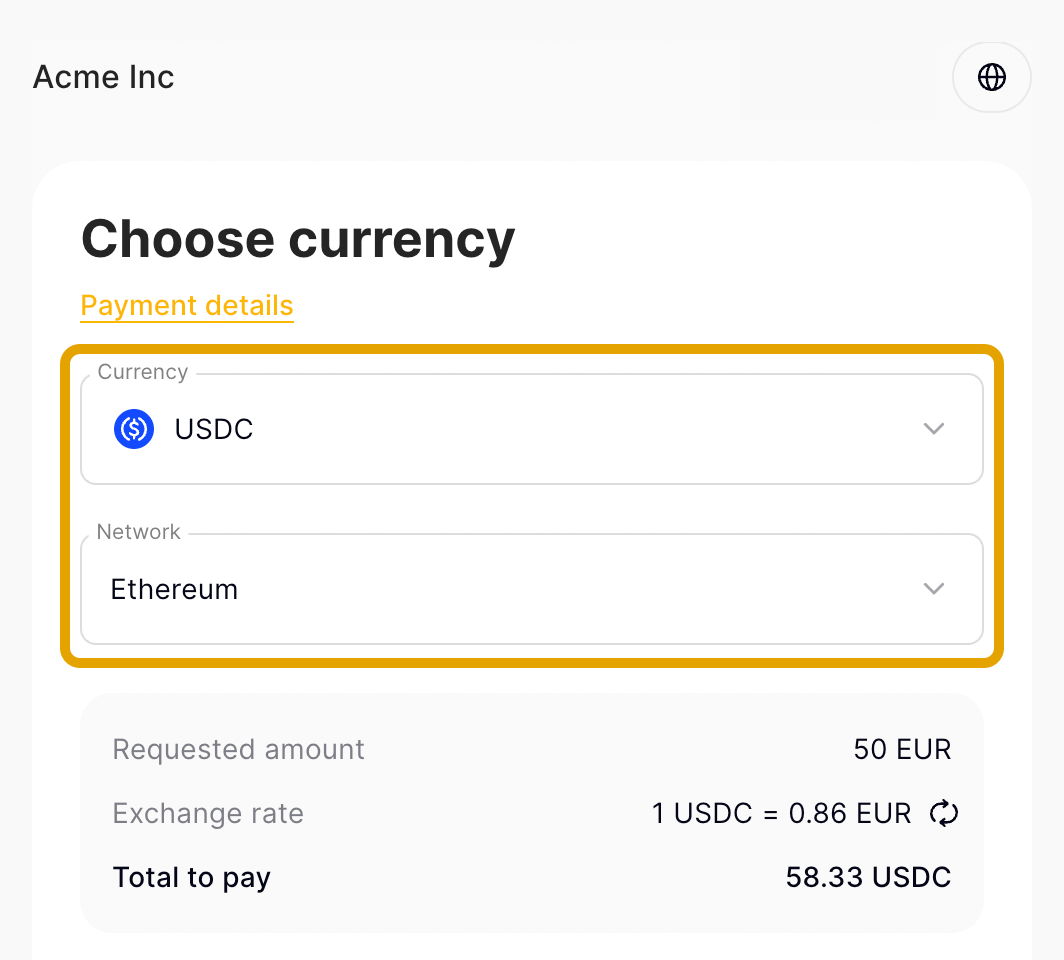
When creating a payment request, you specify the **expected currency** — the cryptocurrency you want to receive. However, your customer may find it convenient to choose another **payment currency** – the cryptocurrency in which the actual transaction will be made.
If the payment currency is different from the expected currency, AlphaPo takes care of converting the funds automatically. This means that you receive the exact amount of the exact currency you requested. When doing so, AlphaPo applies a [rate lock of 1 hour](#lifespan-and-rate-lock).
Alternatively, you can choose a set currency (and/or network) your customer will be able to pay in. We recommend only doing this if your customer has already chosen their preferred currency somewhere on your site. The parameter is only available via API, see [/payments/v1/requests](/api-reference/endpoints/payments).
The payment currency is also used in [refunds](/payment-requests/refunds).
When creating a payment request, you control its behavior by choosing the [currency](#currency-selection) and the [lifespan](#lifespan-and-rate-lock).
The funds received via a payment request may be sent back via a [refund](/payment-requests/refunds), initiated either automatically or manually by you.
## Currency selection
When creating a payment request, you specify the **expected currency** — the cryptocurrency you want to receive. However, your customer may find it convenient to choose another **payment currency** – the cryptocurrency in which the actual transaction will be made.
If the payment currency is different from the expected currency, AlphaPo takes care of converting the funds automatically. This means that you receive the exact amount of the exact currency you requested. When doing so, AlphaPo applies a [rate lock of 1 hour](#lifespan-and-rate-lock).
Alternatively, you can choose a set currency (and/or network) your customer will be able to pay in. We recommend only doing this if your customer has already chosen their preferred currency somewhere on your site. The parameter is only available via API, see [/payments/v1/requests](/api-reference/endpoints/payments).
The payment currency is also used in [refunds](/payment-requests/refunds).
 ## Lifespan and rate lock
There are two time constraints applicable to a payment request.
* The **lifespan** is configured when you create a payment request. The customer's transaction must be both created and confirmed within this lifespan, or the payment request expires.
* The **rate lock** happens if the customer chooses the payment currency different from the currency you requested. AlphaPo locks the currency rates for **1 hour**. The customer's transaction must be both created and confirmed within this period, or the payment request expires.
Note that if you forced selection of a payment currency, the rate lock will start immediately. This behavior is only available via API, see [/payments/v1/requests](/api-reference/endpoints/payments).
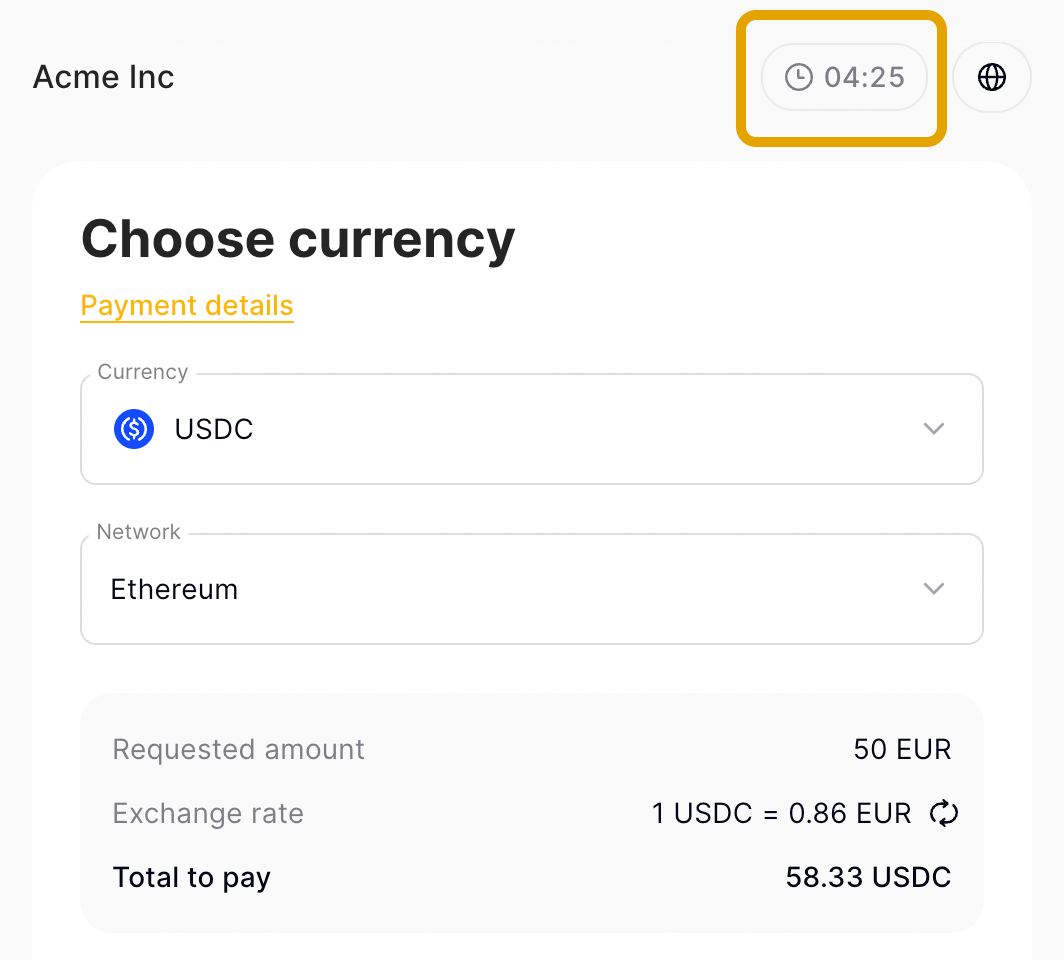
When the payment request has less than 1 hour left before expiration, whatever its cause is, the customer will see a countdown timer on the webpage.
## Lifespan and rate lock
There are two time constraints applicable to a payment request.
* The **lifespan** is configured when you create a payment request. The customer's transaction must be both created and confirmed within this lifespan, or the payment request expires.
* The **rate lock** happens if the customer chooses the payment currency different from the currency you requested. AlphaPo locks the currency rates for **1 hour**. The customer's transaction must be both created and confirmed within this period, or the payment request expires.
Note that if you forced selection of a payment currency, the rate lock will start immediately. This behavior is only available via API, see [/payments/v1/requests](/api-reference/endpoints/payments).
When the payment request has less than 1 hour left before expiration, whatever its cause is, the customer will see a countdown timer on the webpage.
 ## Further reading
Learn how to integrate the payment requests flow into your site
Walk through all scenarios to make sure your integration works correctly
API endpoint
API callback
## Further reading
Learn how to integrate the payment requests flow into your site
Walk through all scenarios to make sure your integration works correctly
API endpoint
API callback